
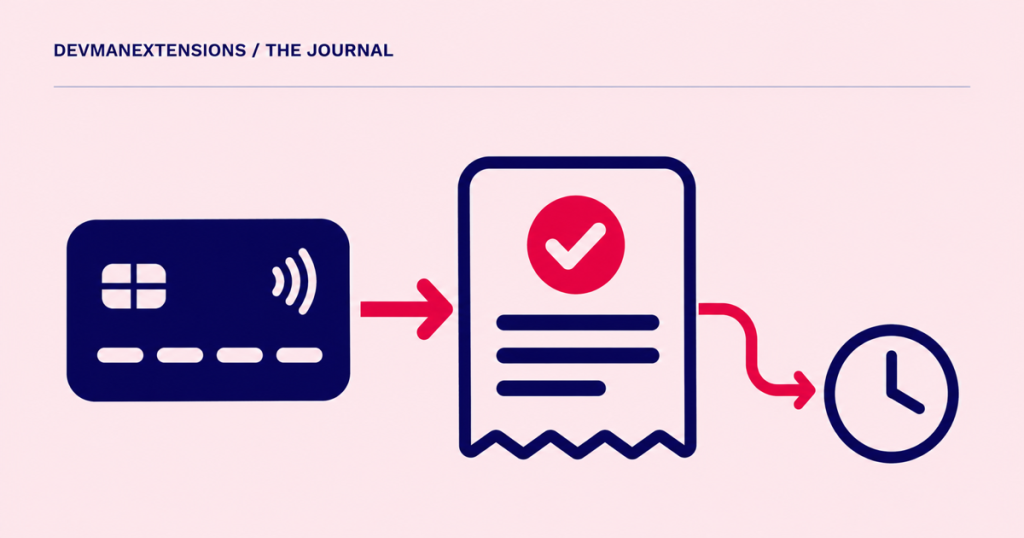
The customer has just paid and your warehouse wants to know whether to pack the order. The answer should be visible in OpenCart, even if the customer closed the browser before returning from the payment provider. A short rehearsal in a test store will show you what happens in that gap. Here is how to run it with Stripe and PayPal before taking live orders.
Decide what each status means for your team
Start with the moment your team is allowed to ship. Pick the OpenCart status that means payment has been confirmed and the order can enter fulfilment. Then decide where awaiting payment, cancellations and declines should land. If your integration supports separate authorisation and capture, decide what staff should do with an authorised order while you wait to collect the funds.
Check the systems that use those statuses. An order export, a shipping tool and an email may all react to the same status change. Write down what each one should do for an order that is paid and for one still waiting for payment. That gives you a clear result to compare with the test.
Make a test order you can trace
Use a staging copy of your store with test credentials, a test product and a mailbox you control. Keep the same checkout and the same status rules you intend to use in production. Record the OpenCart order number, payment reference, amount and currency so you can find the same transaction in both the store and the provider dashboard.
Run through five outcomes
- Successful payment. Complete the checkout. Confirm that the provider shows the expected amount and currency and that OpenCart moves the corresponding order into the status your team uses for paid orders.
- Declined payment. Use a provider-supported decline scenario. Check that OpenCart gives the shopper a way to try again and that the order stays out of fulfilment.
- Customer cancellation. Leave during approval or authentication. Check which status the order keeps and whether the customer can retry without creating a second successful charge.
- Pending confirmation. Where your test environment supports it, leave payment pending. Check that the order stays out of fulfilment until the provider confirms it.
- Browser closed after payment. In test mode, close the tab after payment without relying on the return page. Compare the provider record with the order history and verify whether the configured webhook updates the order.
Follow one order across both systems
Imagine the provider shows a completed payment of €35 for a test order, but OpenCart still shows it as awaiting payment. Check that the reference belongs to the same order and that the amount and currency match. Then look at the webhook delivery history in the provider dashboard. A delivery marked successful tells you the endpoint responded. The OpenCart order history tells you whether the integration processed the update for that order.
If the provider lets you resend an event in test mode, repeat a delivery for the same order. Confirm that the order remains in the correct state and that fulfilment and payment emails are triggered only as intended. Record the outcome alongside your order reference so you have a baseline after an upgrade or a checkout change.
Choose the gateway you want to test
Start with the payment method your customers will actually use. Check compatibility with your OpenCart version and checkout on the product page, then try the published demo to get familiar with the flow. Repeat the checks above on your own staging store before enabling live credentials.
- Stripe Payments PRO for OpenCart
Explore the Stripe extension for card payments and test both a straightforward payment and a 3D Secure challenge.
- PayPal Checkout PRO for OpenCart
Explore the PayPal extension and test the journey from buyer approval to payment confirmation in OpenCart.