
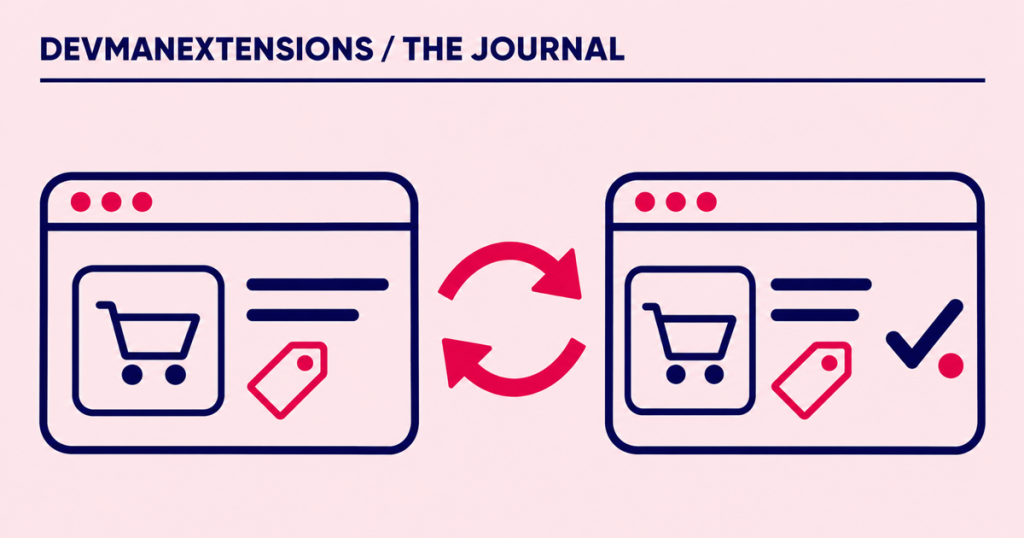
You lower a price in OpenCart, open the product page and see the new amount. A colleague opens the category page and still sees the old price. Checking both views before a cache rollout gives you a chance to spot differences while you can still change the setup. Here is a practical rehearsal you can run on a staging copy of your shop.
Pick a product and write down the expected result
Choose an item that appears in at least two places, such as a shoe on its product page and in a category listing. Note the price, available quantity and purchase behaviour you expect when stock reaches zero. If the product has size options with their own stock, choose one size to follow. Make a note of the store, language, currency and tax display you will test.
Keep the setup stable throughout the exercise. Use the same theme and extensions you plan to use in production. Record which layers can store a copy of the page, including your OpenCart cache and any CDN or hosting cache. This gives you a short list to check if some views update at different times.
Visit the pages before changing the product
With page caching enabled in staging, visit the product and category pages as a guest and record what they show. Visit again so you can compare subsequent responses with the first visit. Note the product URL and the path used to reach it. A featured product block on the home page is another useful check if it shows the same price or availability.
Check the price change from the storefront
For example, change the test item from €49 to €45 in OpenCart and save it. Open the same storefront pages in a fresh browser session and check them again in the original session. Compare the product page, the category card and the price of a newly added unit in the cart, using the same currency and tax basis throughout.
If a view still shows €49, note where you saw it and when you checked. Compare against an equivalent uncached staging result. Review which layer serves that view and how the layer refreshes after a product change. Try the same update again after adjusting the relevant setting. This makes the next comparison easier to interpret.
Repeat with a stock change
Use a separate run to take the test quantity from three to zero. Check what the product page says about availability, whether the chosen size is still selectable and what happens when a guest tries to add it to the cart. Compare the outcome with your store’s own out-of-stock policy. Restore the test stock and confirm that the product can be ordered again as expected.
Run the same checks with Performance Pro
Performance Pro for OpenCart lets you control page caching alongside data, templates, assets and images. Its eligible stored pages are refreshed after product, price and stock changes. Use the workflow above to verify that the pages your customers use reflect those updates with your theme and hosting setup. Save the results as a checklist for the next store change.