
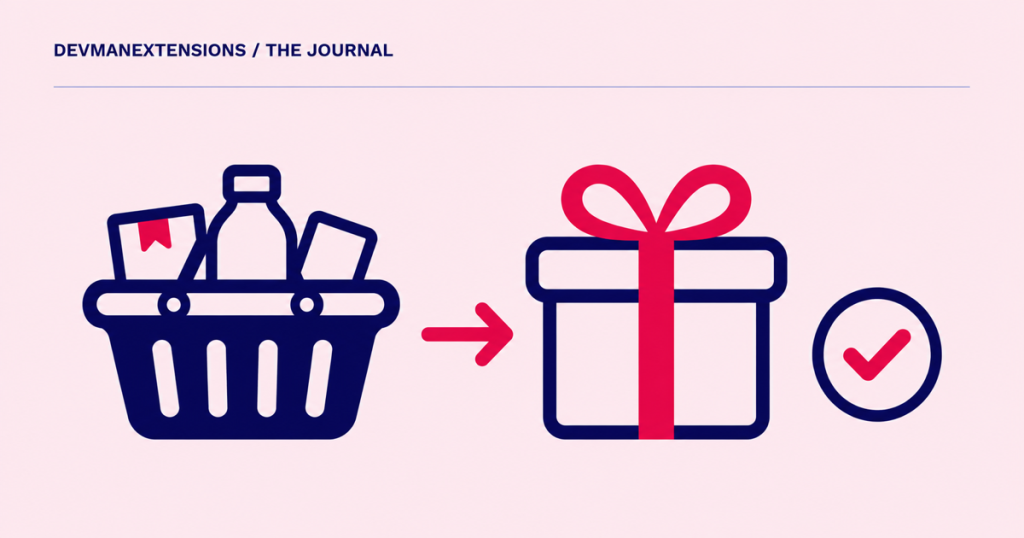
A shopper sees a free gift in the cart, applies a coupon and watches the gift disappear. There may be a good reason, but the shopper needs to understand it before placing the order. A short rehearsal helps you check the rule, see what the customer sees and give your team a clear answer when someone asks where their gift went.
Start with a rule your shoppers can understand
Imagine an accessories store offering one free pouch when eligible products reach €80 after coupons, including tax. Write that condition down before configuring the campaign. Choose the gift, check its stock and agree where you will explain the offer. In this example the amount refers to paid products in the store’s base currency. Delivery charges and the gift itself contribute nothing to the minimum.
Try three baskets around the minimum
Build baskets worth €79.99, €80 and €80.01 on a test copy of your shop. The first should remain below the minimum. The other two should qualify if all other campaign conditions are met. Keep the products and tax settings consistent while you vary the total. Check the cart and checkout on a phone as well as on desktop, including where the customer chooses the gift.
Record the result for each basket. If the numbers look different at checkout, check the tax basis and the currency shown to the shopper. Use the same basis when you write the promotion and when you compare the results in your test.
Apply a coupon, then change the cart again
Start with €85 in eligible products and select the pouch. Apply an €8 coupon that discounts those products. The new eligible total is €77, so the promotion no longer applies. Check that the cart removes the gift on recalculation and that checkout and the order summary reflect that change. Then remove the coupon and verify that the shopper can choose the gift again once the basket qualifies.
Repeat the exercise by lowering the quantity or removing a qualifying product. Try a reload and move back and forth between cart and checkout. Compare the visible offer, the gift line and the order total on each screen. This is where a stale cart display can leave shoppers with the wrong expectation.
Check the gift stock and the final order
Try the campaign with a gift in stock and then with that gift unavailable in the test store. If your campaign offers a choice of gifts or options, check those individually. Use a test order for the qualifying case and inspect what the customer sees and what your fulfilment team receives. Verify the selected gift, its quantity and the final total.
Set up the offer with Gift Products PRO
Gift Products PRO lets you set a minimum for paid products after coupons, with a choice of tax basis. You can offer one or more gifts for shoppers to select in the cart. Try the public demo to see the selection flow, then check compatibility with your OpenCart version and run the exercise in your own test shop before launching.